

How to Disable Windows Defender (Tamper Protection & Real-time Protection)
Windows Defender can block or quarantine the loader before it starts. You need two protections off: Tamper Protection and Real-time protection. Methods 1 and 2 use Windows Security and are quick but temporary. Method 3 makes the change stick.
Method 1: Turn off Tamper Protection
Do this first. While Tamper Protection is on, Windows switches the other settings back.
Open
Start, search for Windows Security and open it.Select Virus & threat protection.
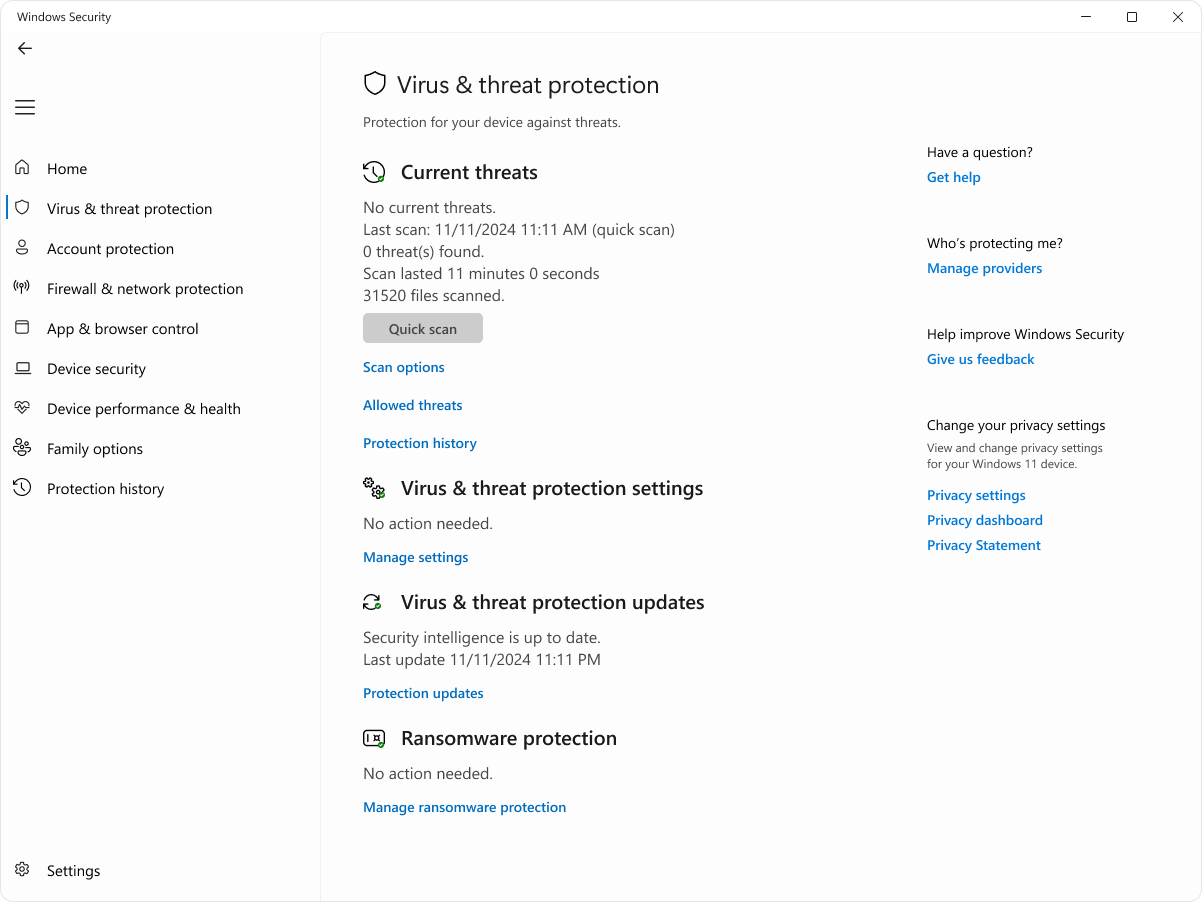
Under
Virus & threat protection settings, click Manage settings.Set Tamper Protection to
Off.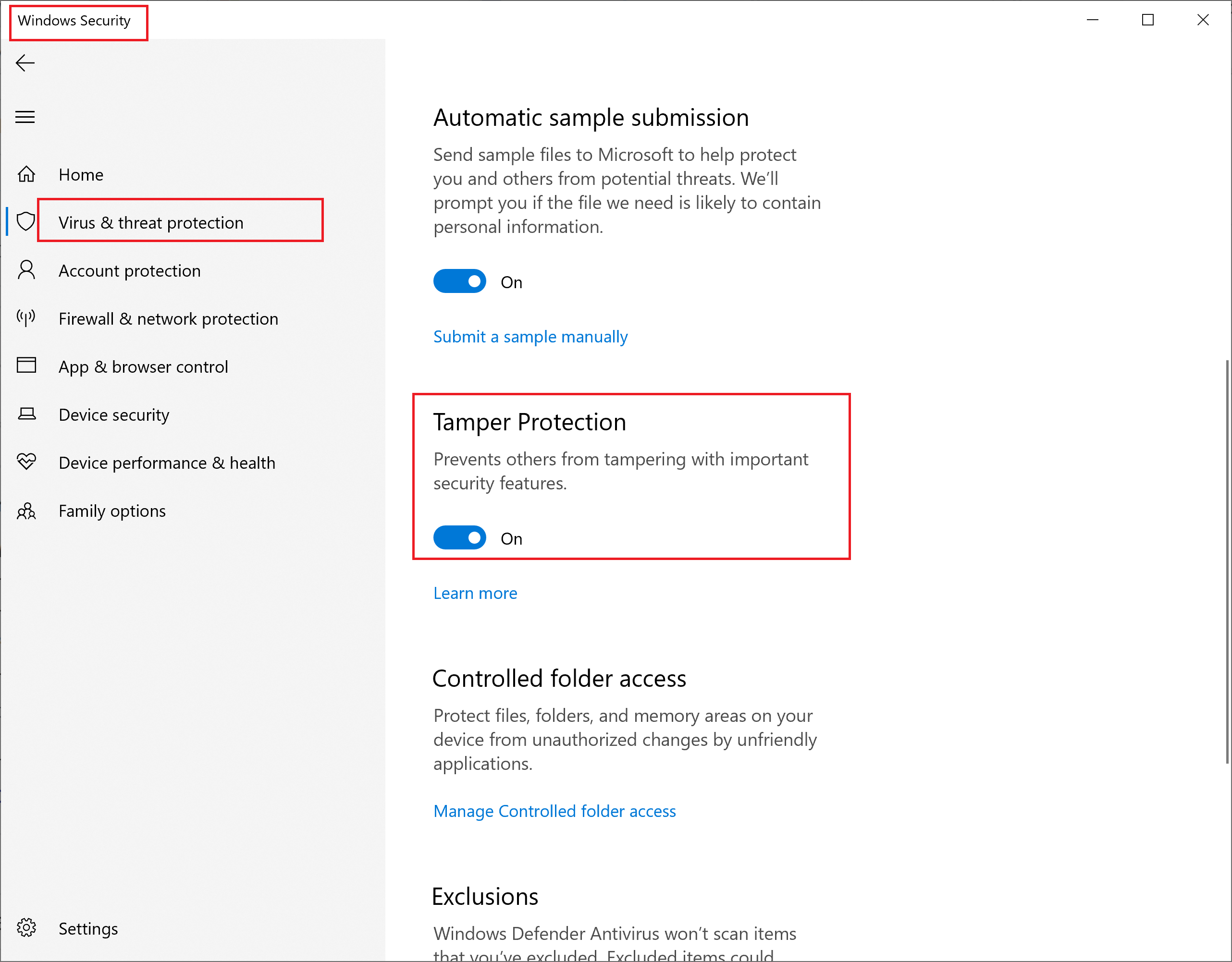
Method 2: Turn off Real-time protection
Make sure Tamper Protection is already off (Method 1).
In Windows Security, open Virus & threat protection → Manage settings.
Set Real-time protection to
Off.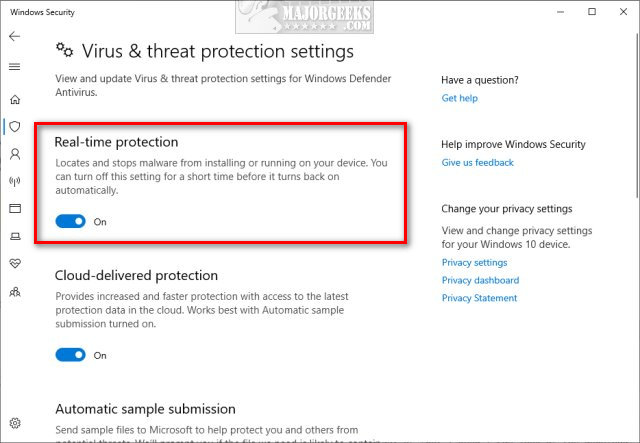
Note
Windows turns Real-time protection back on by itself after a while or after a restart. If you need Defender to stay off, use Method 3.
Method 3: Keep Defender off with Defender Control
Defender Control is a free, portable tool from Sordum that switches Defender off with one click and keeps it off.
Download it
- Download Defender Control from the official site, sordum.org.
- Your browser and Defender will probably flag the download. That's expected: any tool that changes security settings gets flagged. It is a false positive.
If Chrome blocks the download
Option A: keep the file (try this first)
Press
Ctrl + Jto open your downloads.Find the blocked file.
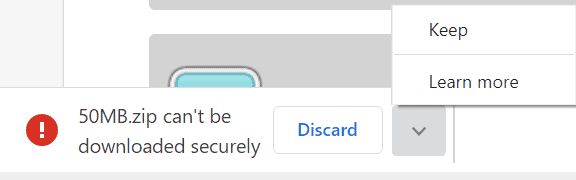
Choose Keep dangerous file.
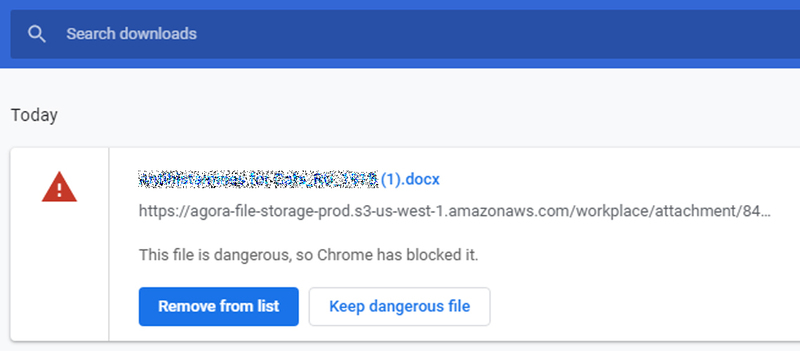
Option B: pause Safe Browsing for one download
Only use this if the Keep option doesn't appear.
Open Chrome's three-dot menu and go to Settings → Privacy and security → Security.
Under Safe Browsing, choose No protection (not recommended).
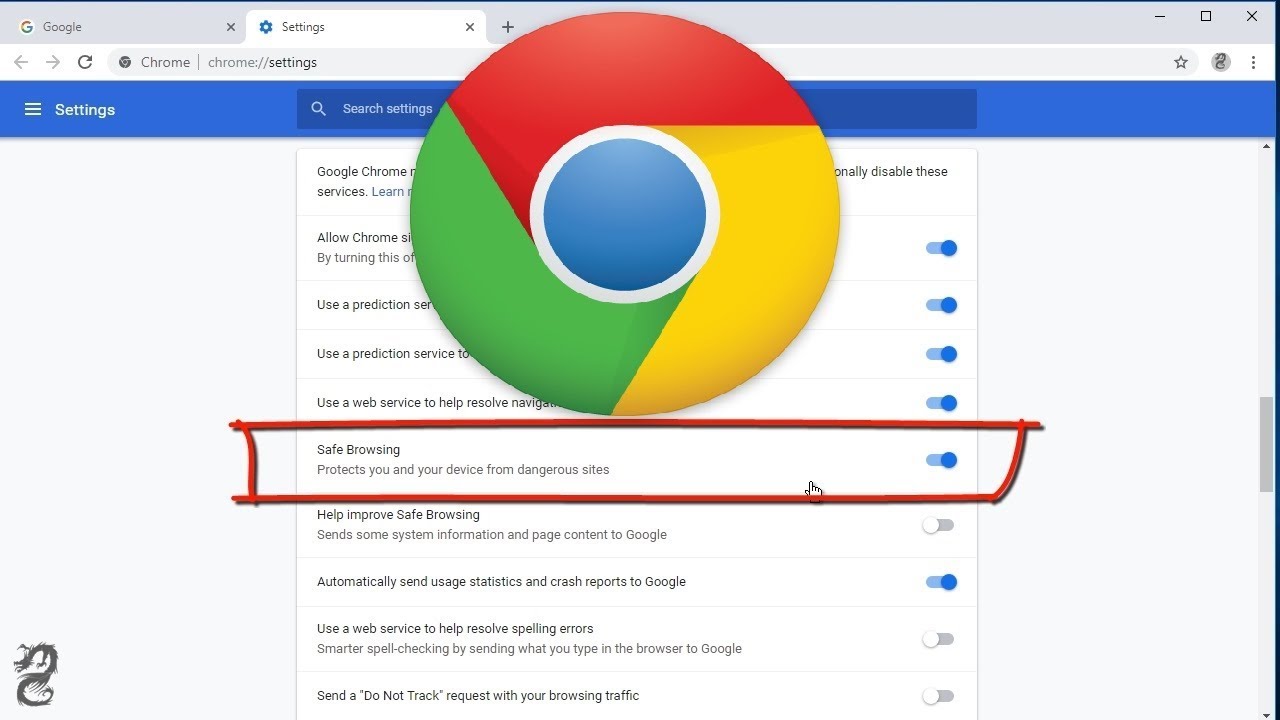
Confirm with Turn off.
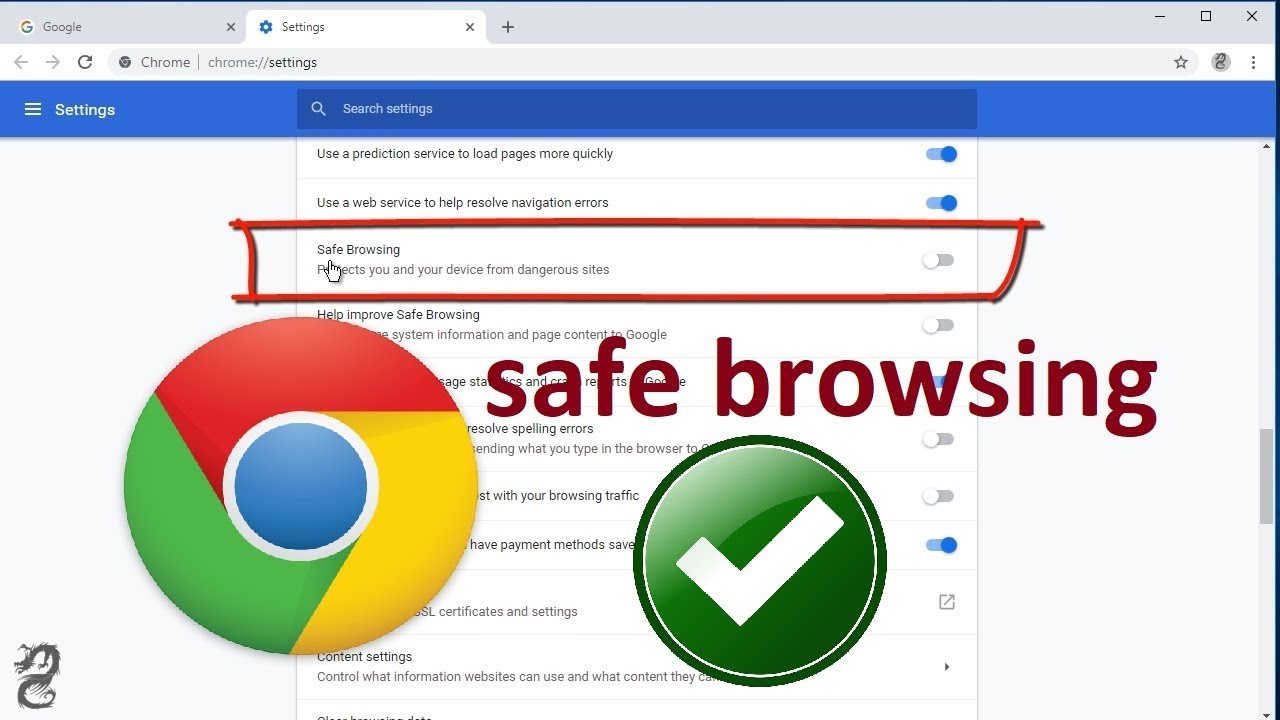
Download Defender Control again.
Go back and set Safe Browsing to Standard protection straight away.
Warning
Don't leave Safe Browsing off. Turn it back on as soon as the download finishes.
Run it
Extract the ZIP. The password is
sordum.Turn off Tamper Protection and Real-time protection first (Methods 1 and 2), or Defender will delete the tool as soon as you extract it.
Run
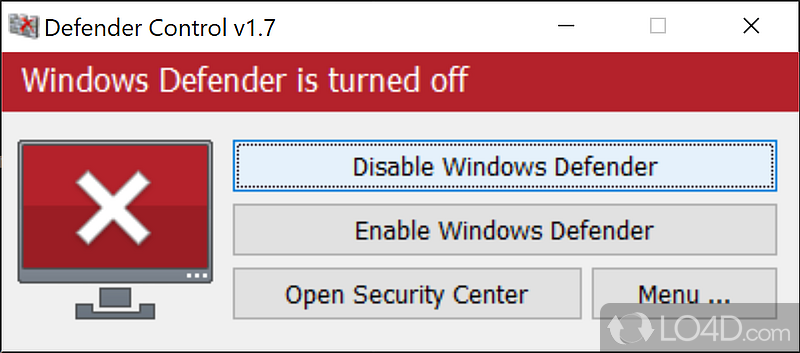
dControl.exe. The window shows Defender's current state.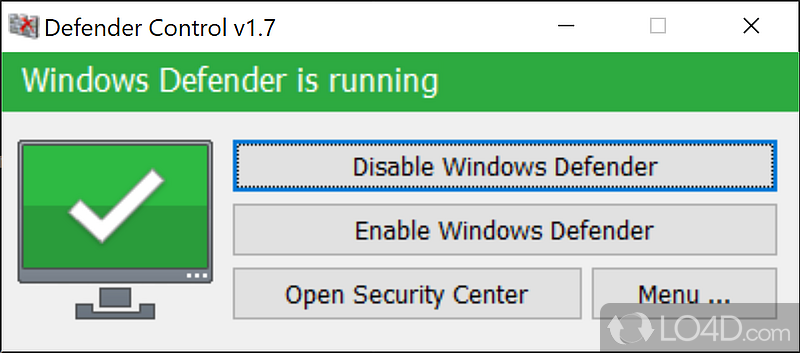
Click Disable Windows Defender. The window turns red when Defender is off.
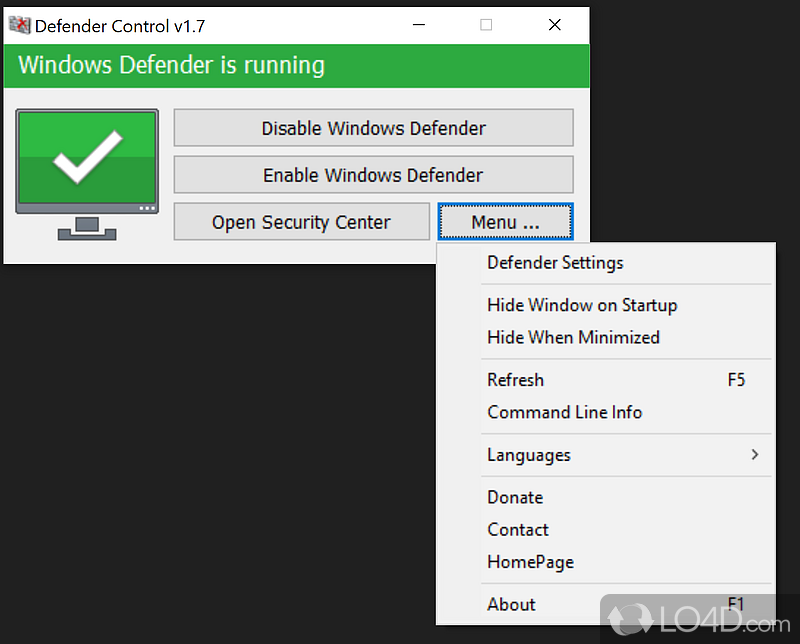
Open Menu → Add it to the Exclusions List so Defender never removes the tool.
Tip
To turn Defender back on later, open Defender Control and click Enable Windows Defender.
Next step
Defender is one of five requirements. Continue with Memory Integrity, then work through the rest of the troubleshooting guide.