
Troubleshooting Guide for the PeekCheats Loader
Start here when something is not working. Most loader and menu problems come from the same short list of Windows settings, and working through it in order fixes nearly every case.
Setting up for the first time? Follow the setup instructions instead; this page is for when something is already broken.
Important
Close every game and every game launcher completely before you start the loader. Check the system tray, not just the taskbar.
1. Meet the requirements
Do all five, even if you think one does not apply to you.
- Install the Microsoft Visual C++ Redistributable. Get the x64 installer from Microsoft and run it. If it offers Repair, repair it.
- Uninstall third-party antivirus. Turning it off is not enough, because many products keep a driver running in the background. Remove it from
Settings → Apps. - Disable Windows Defender. Both
Real-time protectionandTamper Protectionneed to be off. Follow How to disable Windows Defender. - Turn off Memory Integrity. You'll find it under
Windows Security → Device security → Core isolation. See How to disable Memory Integrity. - Remove kernel-level anti-cheats you don't need. FACEIT and Riot Vanguard load at boot even when their games are closed. Uninstall them and restart.
Note
Secure Boot and TPM do not affect the loader. You can leave them as they are.
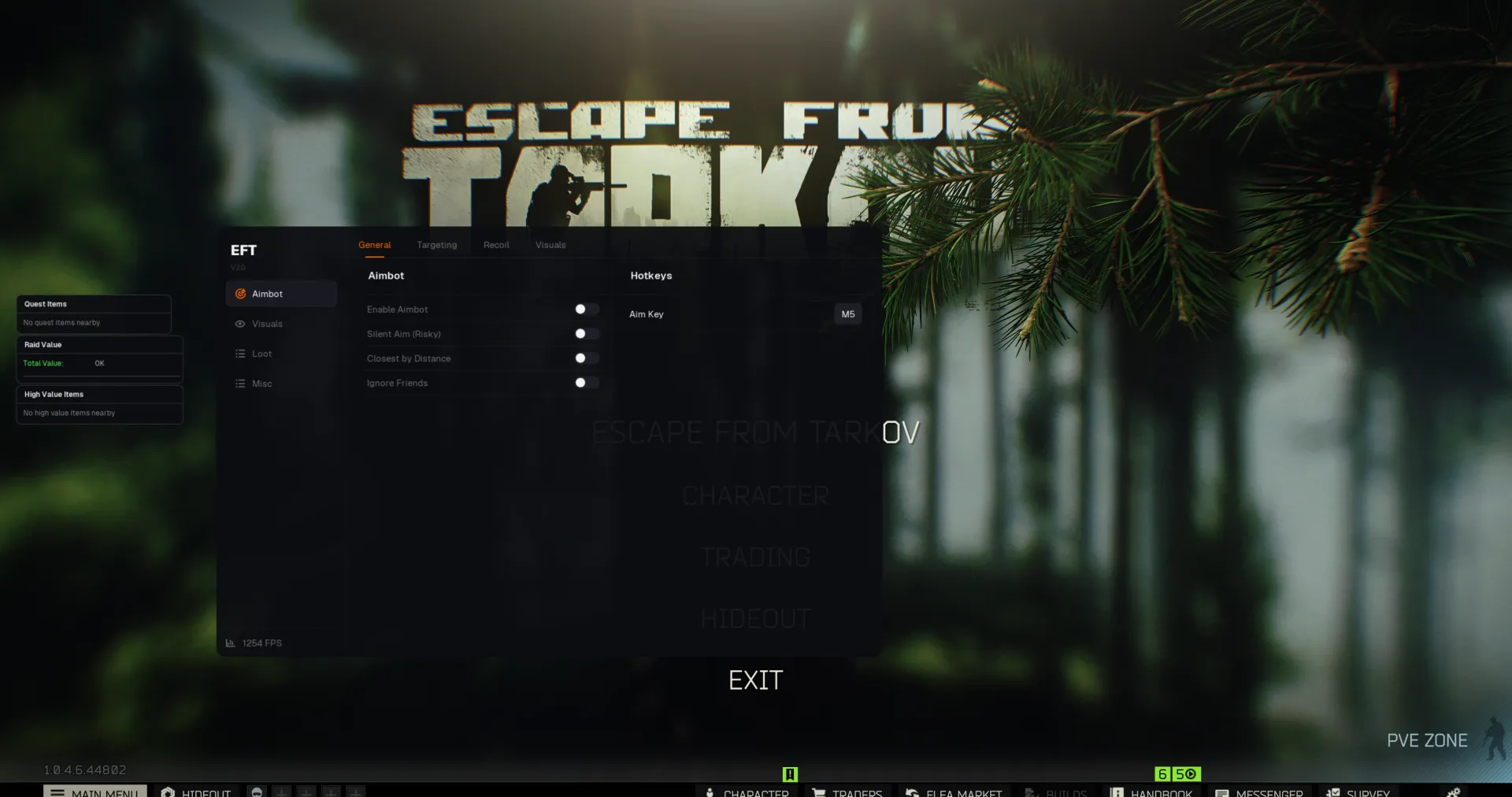
2. The menu doesn't show, disappears or you get a black screen
- Re-check every requirement above. A skipped step is the most common cause.
- Switch the game to Borderless or Windowed. Exclusive
Fullscreencan hide the overlay. - Disable other overlays. Anything that draws over the game competes with the menu:
- Use injection compatibility mode. In the loader, press
F1before you clickSTART. - If the menu vanishes mid-match, and you have 16 GB of RAM or less, set up ISLC to stop the standby list from filling up.
Still no menu? Some games need a helper overlay to inject into. See Medal overlay setup or SteelSeries Sonar overlay setup.
3. Other common problems
- Loader stuck on loading or shows a connection error: Connection error and infinite loading
- Menu is visible but you can't click it: Menu not clickable
- Menu works but ESP draws nothing: ESP or visuals not working
- The cheat stopped working after a game update: check the live status page. If the game shows Updating, wait for the update.
Optional system tweaks
These rarely cause problems on their own, but turning them off removes variables when you're stuck:
Last resort: reinstall Windows
Only do this after every step above has failed. Use the official Microsoft ISO and install from a USB stick. Don't reset from Settings, and don't use modified "gaming" builds of Windows, which we don't support. You can keep your files. Follow How to reinstall Windows from USB, then reset your HWID so your key works on the fresh install.
If nothing here helped, contact support and tell us which steps you've already done.