
How to Set Up the SteelSeries Sonar Overlay
SteelSeries Sonar has a small volume overlay that some games inject through reliably. You don't need SteelSeries hardware. The catch is that the overlay only starts after you press a volume shortcut once, so you need to bind one.
Install SteelSeries GG. Download it from steelseries.com and install it.
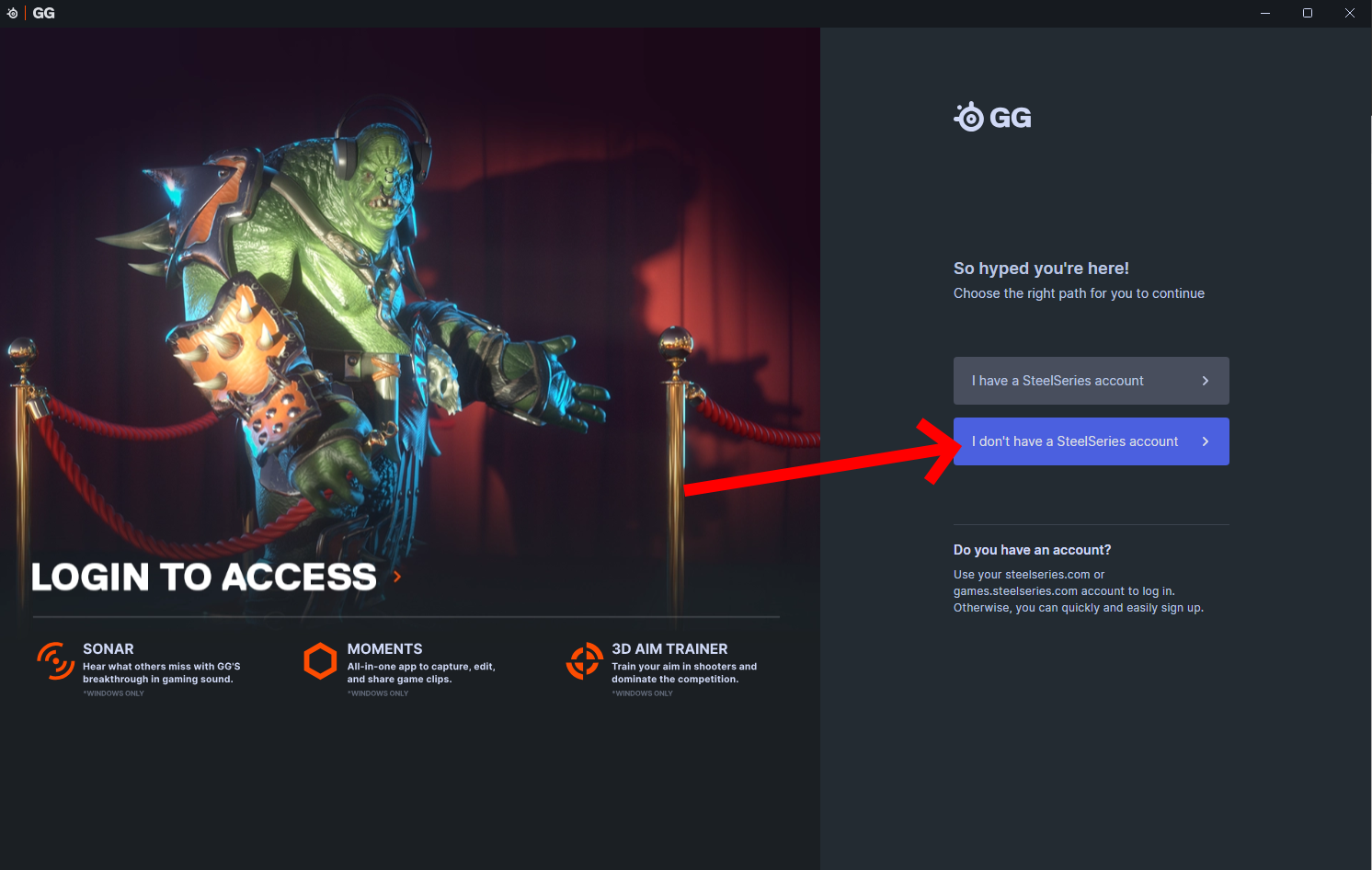
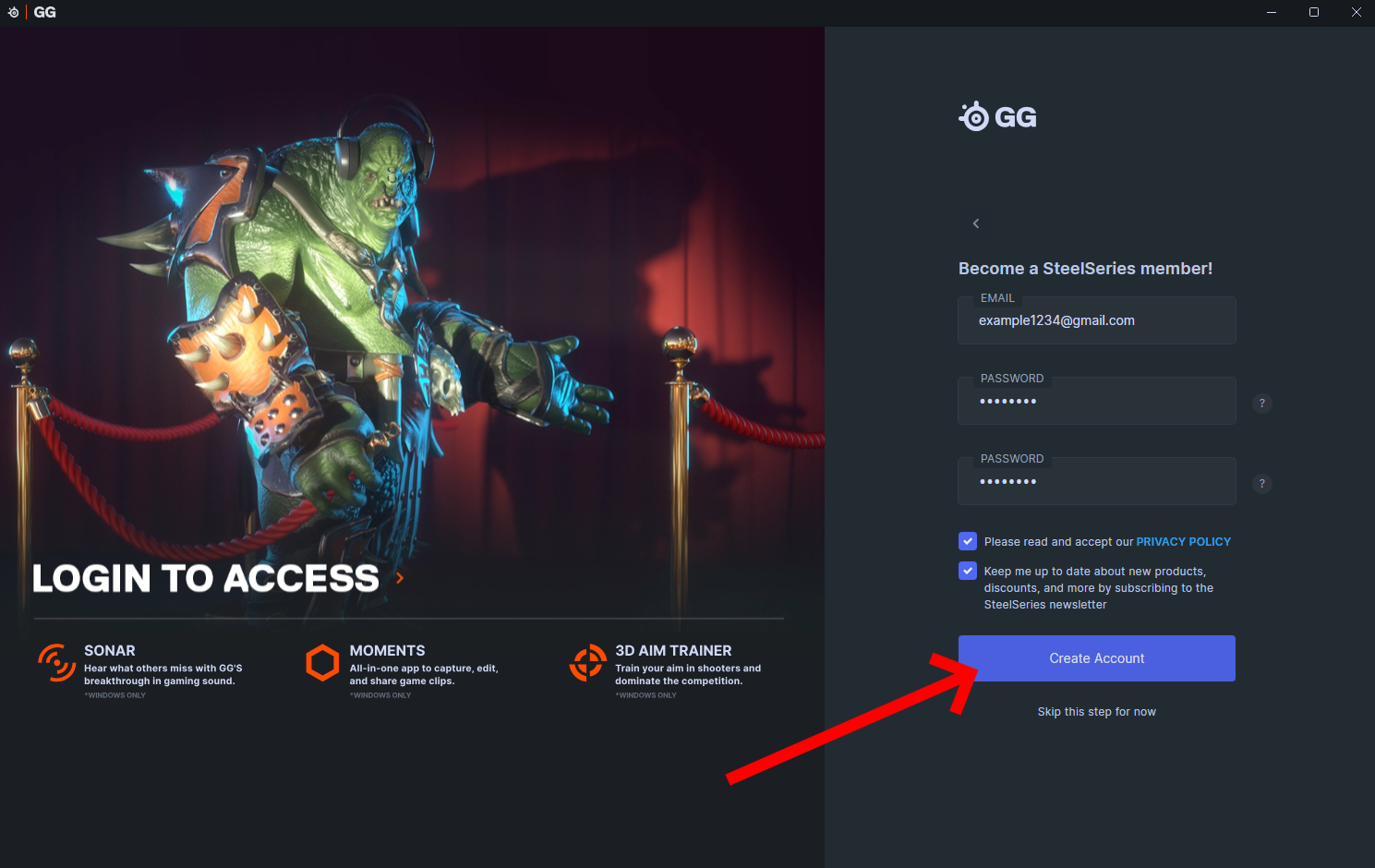
Create an account. Choose I don't have a SteelSeries account, fill in the form and click Create Account. You don't need to confirm your email.
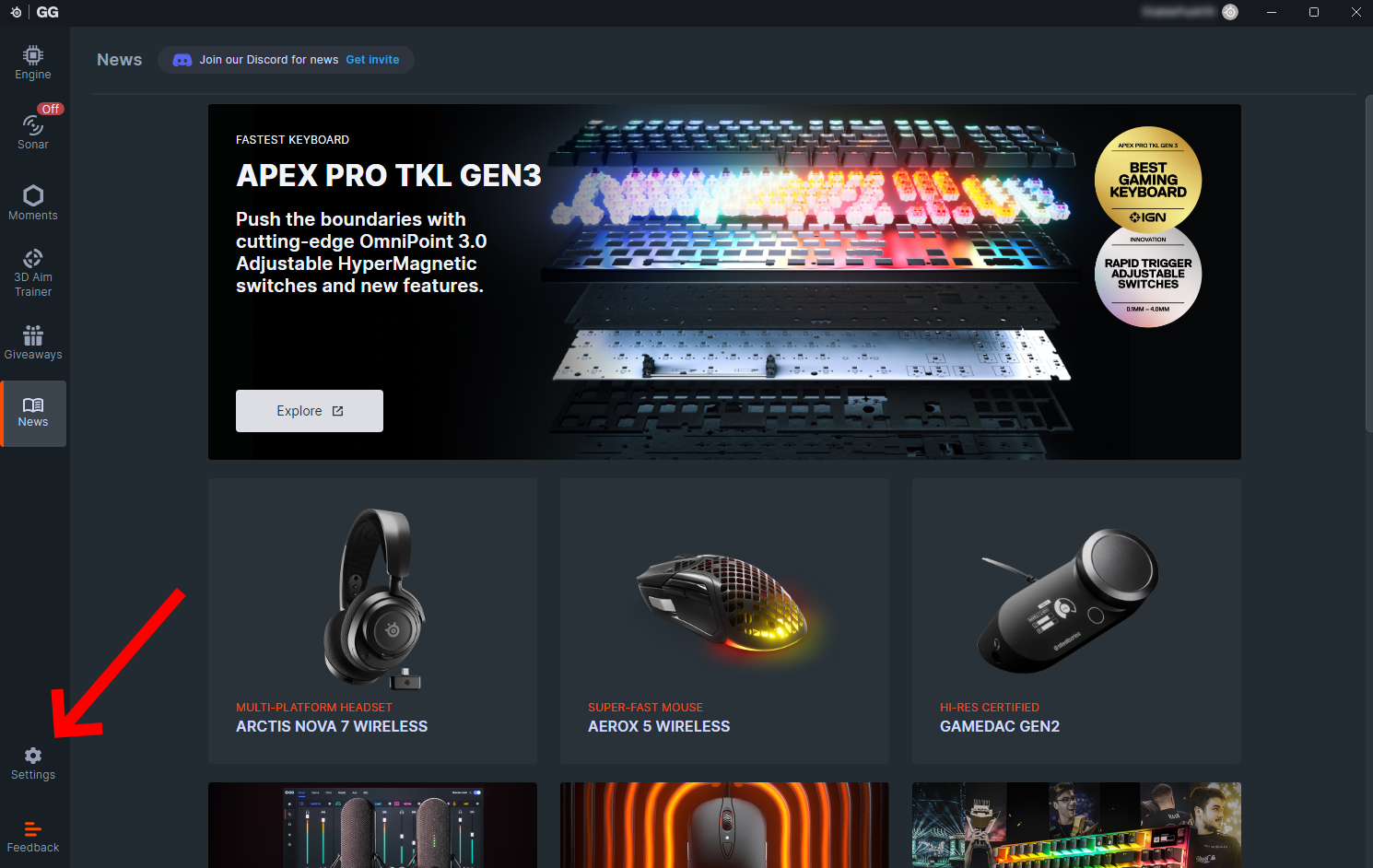
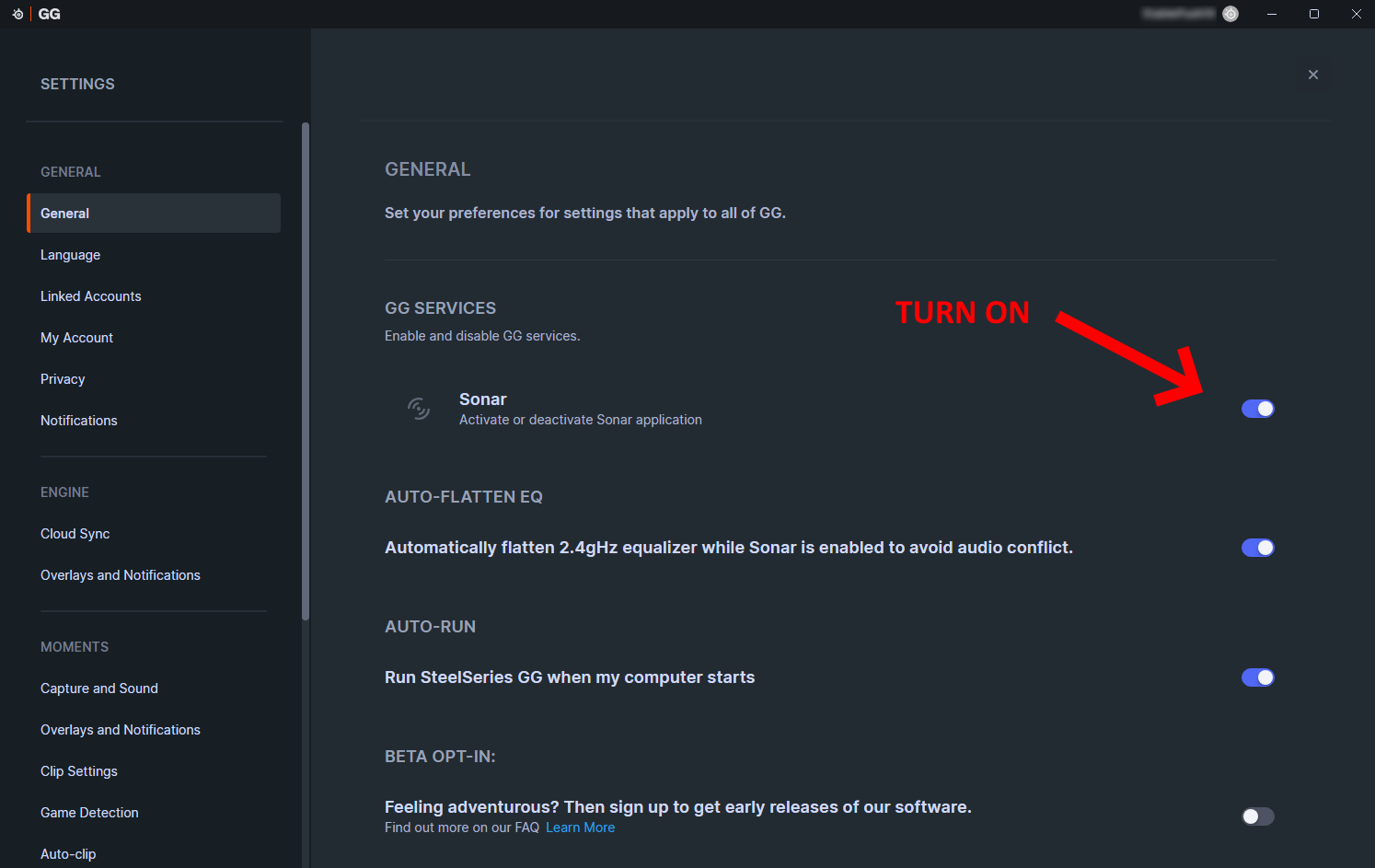
Open Settings. Click Settings in the bottom-left corner of SteelSeries GG.
Enable Sonar. Under GG Services, switch Sonar on.
Bind a volume shortcut. Go to Sonar → Shortcuts and assign a key to Master - Volume Up, for example
F1.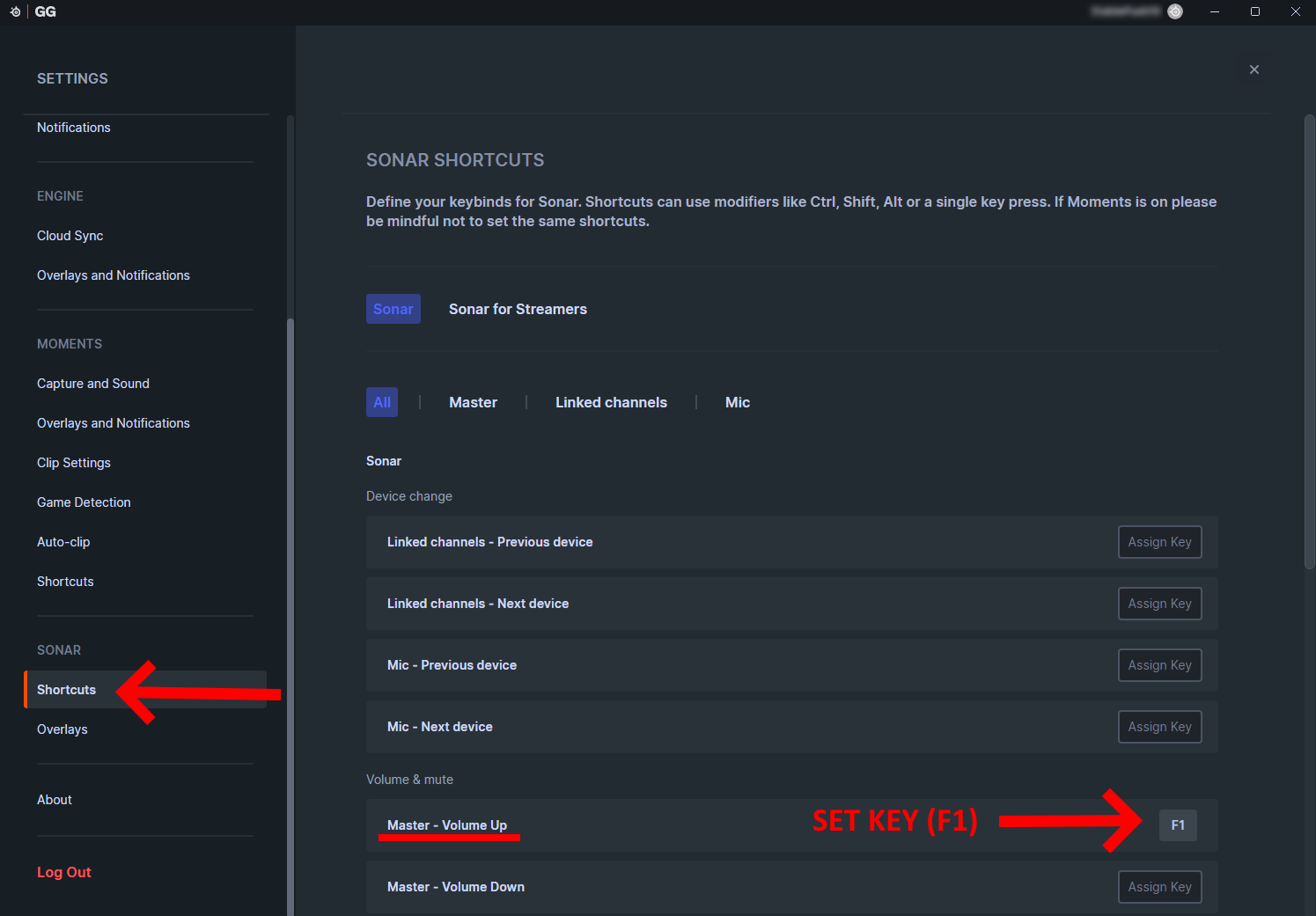
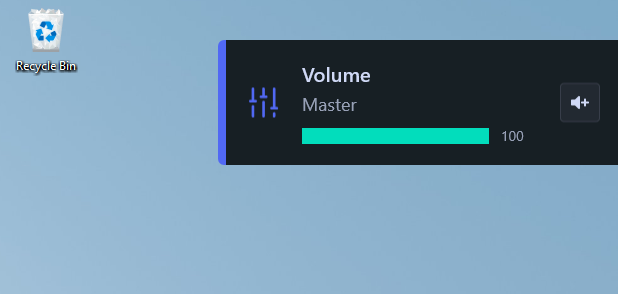
Press the key. The volume overlay appears in the top-right corner of your screen. Sonar's overlay is now active and you can inject.
Tip
Press the hotkey once after every restart, before you open the loader. The overlay isn't active until you do.
Other overlays still need to be off, so see the troubleshooting guide. Prefer Medal? See Medal overlay setup.