
How to Set Up the Medal Overlay for Injection
If the menu still won't show after the troubleshooting guide, some games inject more reliably through Medal.tv's overlay. You only need the overlay. Every recording feature stays off, and Medal keeps running minimized.
Important
Three rules make this work: Enable Overlay stays on, everything else stays off, and Medal stays minimized, never closed.
Set up Medal
Install Medal. Download it from medal.tv, finish the setup and sign in or create an account.
Turn the overlay on. In the left sidebar under App Settings, open Overlay and set Enable Overlay to
ON. This is the only setting that stays on.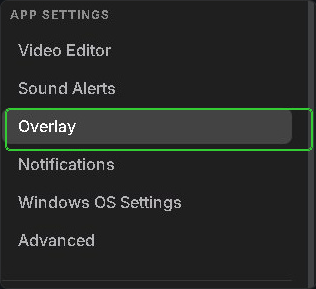

Turn off clip capture. Open Clip Settings and set Capture Clips to
OFF.
Turn off the video overlay. Open Video Overlay and set both Video Overlay and Virtual Camera Captures to
OFF.
Turn off auto clipping. Open Auto Clipping and set Auto Capture Events to
OFF.
Clear your startup apps and restart. Press
Ctrl + Shift + Esc, open the Startup apps tab, right-click every entry and choose Disable. Then restart your PC. The settings don't take effect until you do.
Inject
- Open Medal, sign in and check that Enable Overlay is still
ONand everything else is stillOFF. - Go back to Medal's main page and minimize the window. Don't close it.
- Open the loader and inject as usual.
Checklist
| Page | Setting | Must be |
|---|---|---|
| Overlay | Enable Overlay | ON |
| Clip Settings | Capture Clips | OFF |
| Video Overlay | Video Overlay, Virtual Camera Captures | OFF |
| Auto Clipping | Auto Capture Events | OFF |
- Do the steps in order. Skipping one usually brings the problem back.
- Medal must stay minimized in the taskbar. Closing it undoes the fix.
- Every other overlay must be off: Discord, NVIDIA, AMD, Steam and the Xbox Game Bar.
Medal not an option? The SteelSeries Sonar overlay works the same way.